Users & Roles
iFlow's access control has two independent axes that combine into an effective permission:
- Org role — who manages the organization (users, projects, credentials).
- Project role — who can read and modify entity data (samples, subjects, orders, analyses, files) inside a project.
Order-specific access adds a third axis for clinical workflow:
- Order access — for a given order stage, the assignee typically has edit access; everyone else is read-only.
You see the same three matrices in iFlow itself under Settings → Organization → Roles. This page is a copy of that UI, plus context you can't see on screen.
Managing users at the organization level
Org admins can view all users in their organization under the Users section. From there they can:
- Invite users to the organization (see Create Account & 2FA for the invitee's side of the flow).
- Change a user's org role by editing the row.
- Remove a user from the organization (revokes access immediately).
Removal is immediate
Removing a user from an organization revokes their access to every project in that organization at once. There is no grace period or soft-delete from this UI.
Org Roles
Organization roles control org-level management. Each user has one org role per organization. Higher roles include all lower-role permissions.
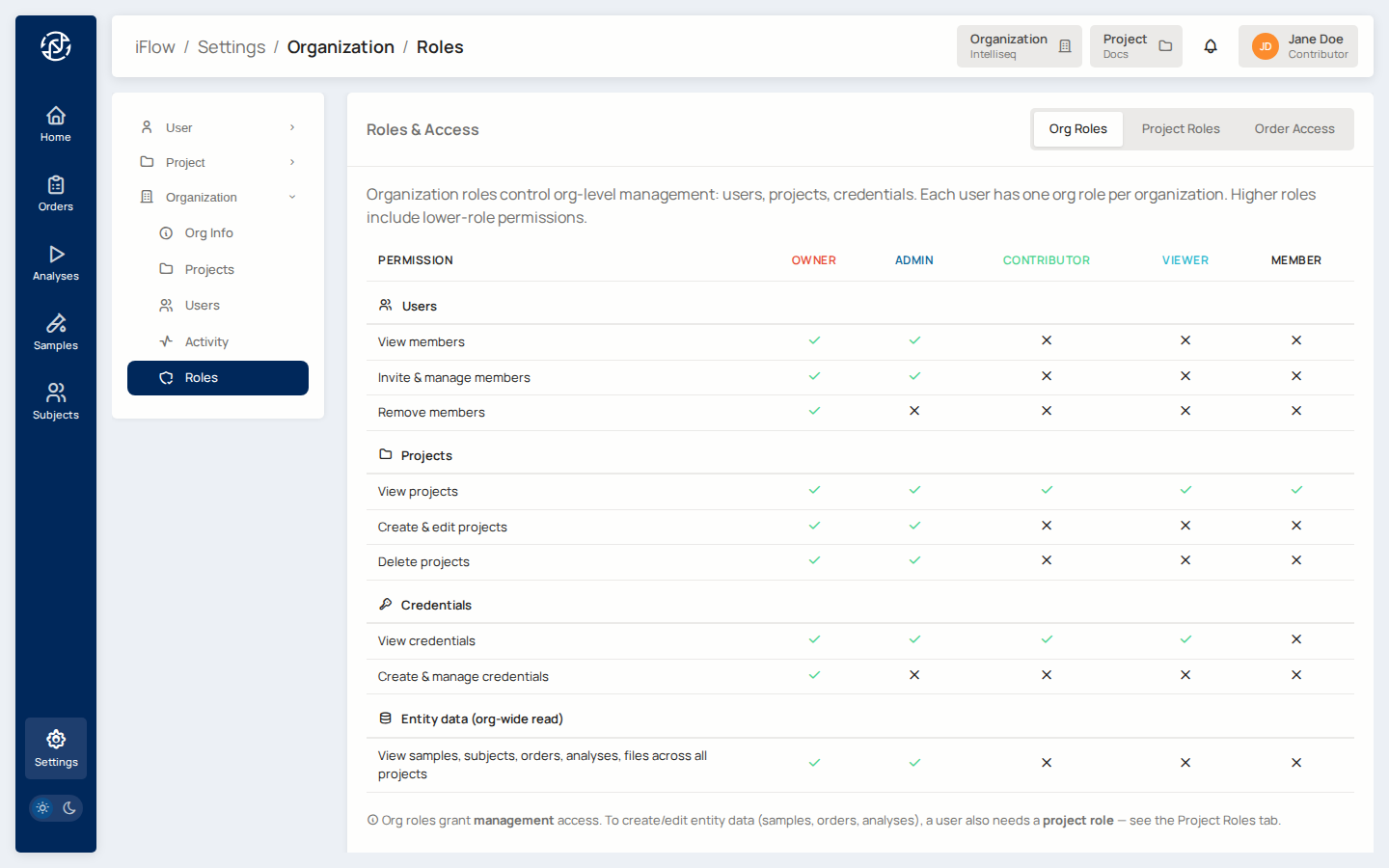
Org roles grant management access only
To create or edit entity data (samples, orders, analyses), a user also needs a project role. An org Admin with no project role cannot add a sample to a project — they can only manage membership.
Project Roles
Project roles control entity-data access within a single project. A user can have a different role in each project they belong to.
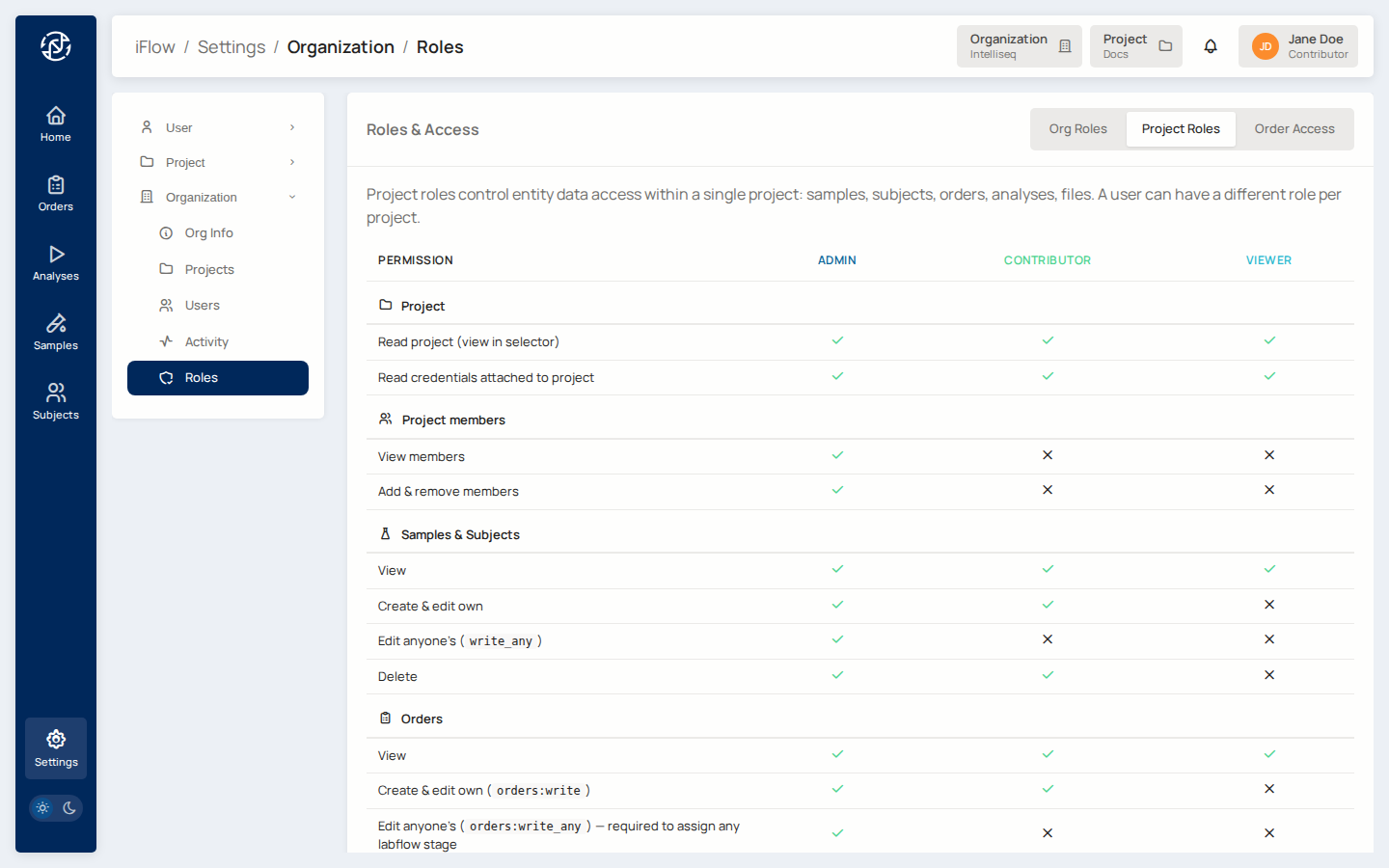
Permission codes referenced in this matrix:
| Code | Meaning |
|---|---|
orders:write |
Create and edit orders where the user is the stage assignee |
orders:write_any |
Edit any order regardless of assignment (required to assign other users to labflow stages) |
write_any (on Samples / Subjects) |
Edit entities created by anyone else |
Typical permission error
"I can see the order but I can't edit the variant." Check two things: (1) are you assigned to the current labflow stage? and (2) does the stage's flag allow editing? (See Order Access below.)
Order Access (labflow stages)
An order runs through five stages: Creation → Analysis → Review → Sign Off → Completion. Each stage has an internal state — pending, in progress, or completed. Effective access is the intersection of:
- the stage's access flags (whether variant browser / report are editable at all at this stage),
- the current stage state (most editing happens only in in progress),
- whether you are the assignee of the stage or not.
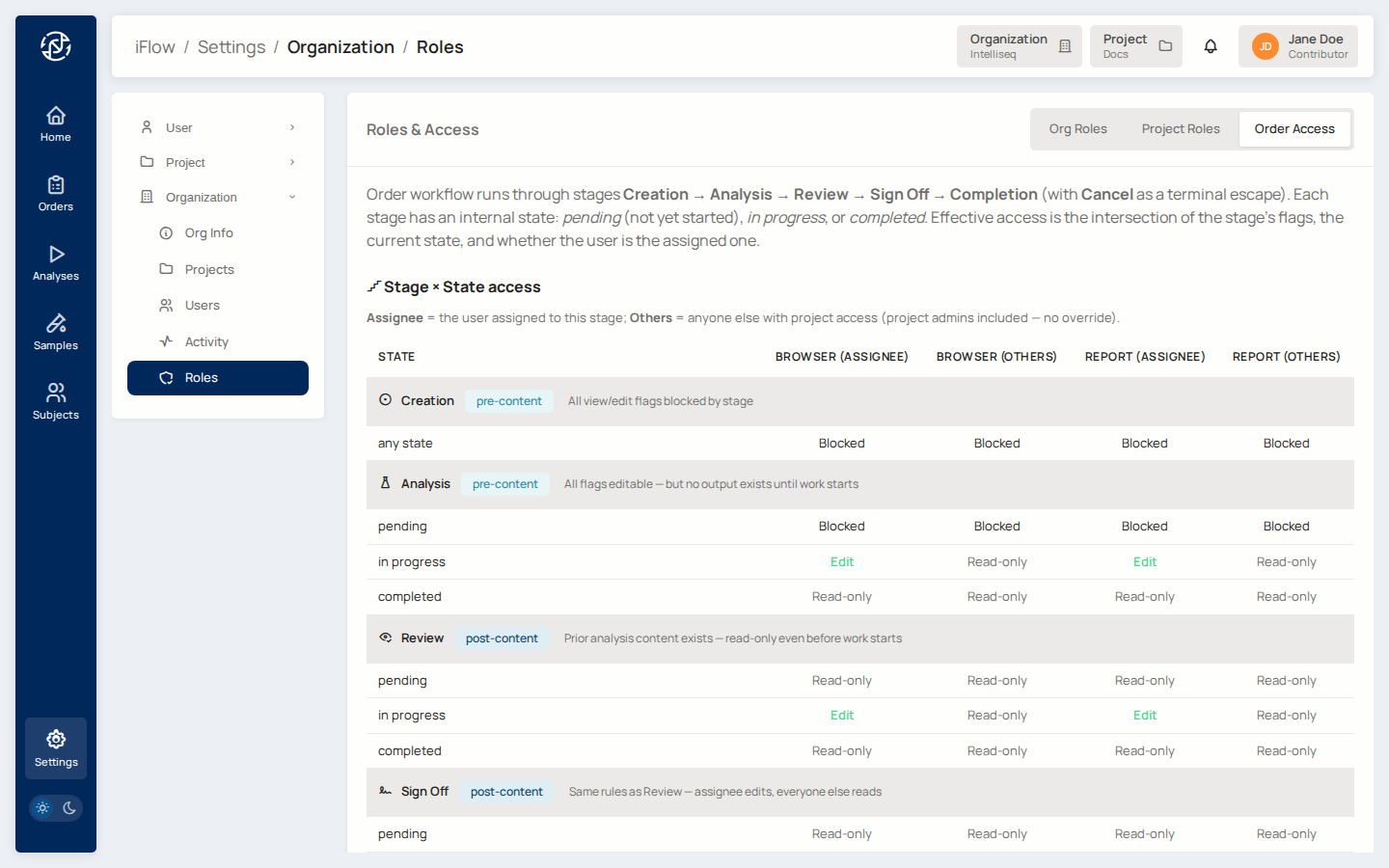
The stage tags have the following meaning:
pre-content— the analysis hasn't produced output yet, so there is nothing for anyone to view.post-content— analysis output exists; other users can read it even before work starts on the current stage.
Assignee vs Others
- Assignee is the single user currently owning the stage.
- Others is everyone else with project access. Project admins fall into "Others" unless they self-assign — there is no admin-override that grants editing without taking assignment.
How the three axes combine
The effective permission for an action is the intersection of all three axes. For example, to edit a variant on an order that is in Review: in progress:
- The user needs a project role that grants
orders:writeonSamples & Subjects / Orders(Contributor or Admin). - The current stage (
Review) must allow browser editing — it does. - The user must be the assignee of the Review stage.
If any one of the three is missing, the edit is blocked.
Role hierarchy at a glance
Highest → lowest. A user granted a higher role inherits everything below.
| Axis | Order |
|---|---|
| Org | Owner > Admin > Contributor > Viewer > Member |
| Project | Admin > Contributor > Viewer |
Superadmin is a platform-level role granted outside these two axes — used for Intelliseq operators, not for laboratory users. See Intended Use for the responsibilities split.
Terminal guarantees
order.status = completedandreport.status = signedare terminal for editing through the normal UI. Modifying a completed order's report requires an amendment, which creates a new signed PDF.signed_pdf_pathis set once by Approve-and-Sign and never overwritten. Sign-off uploads the PDF via admin credentials, not the signing user's, so a clinical signatory without bucket-write access can still sign.- Every transition is appended to
OrderStageTransitionHistorywith the acting user ID and timestamp — the audit trail is immutable.
See also
- From sample to report — see the roles in action.
- Order lifecycle — stage flags and transitions.
- Intended Use — scope and limitations.
- Create Account & 2FA — the invitee's onboarding flow.