Organizations & Projects
iFlow has two layers of grouping above individual data: organizations (your lab, team, or department) and projects (workspaces inside an organization).
Both are provisioned for you by Intelliseq during onboarding — creating organizations and projects is a superadmin operation, so this page describes what they are and how you work within them rather than how to create them.
Organizations
An organization is the top-level container. It holds projects, users, and shared cloud-storage credentials.
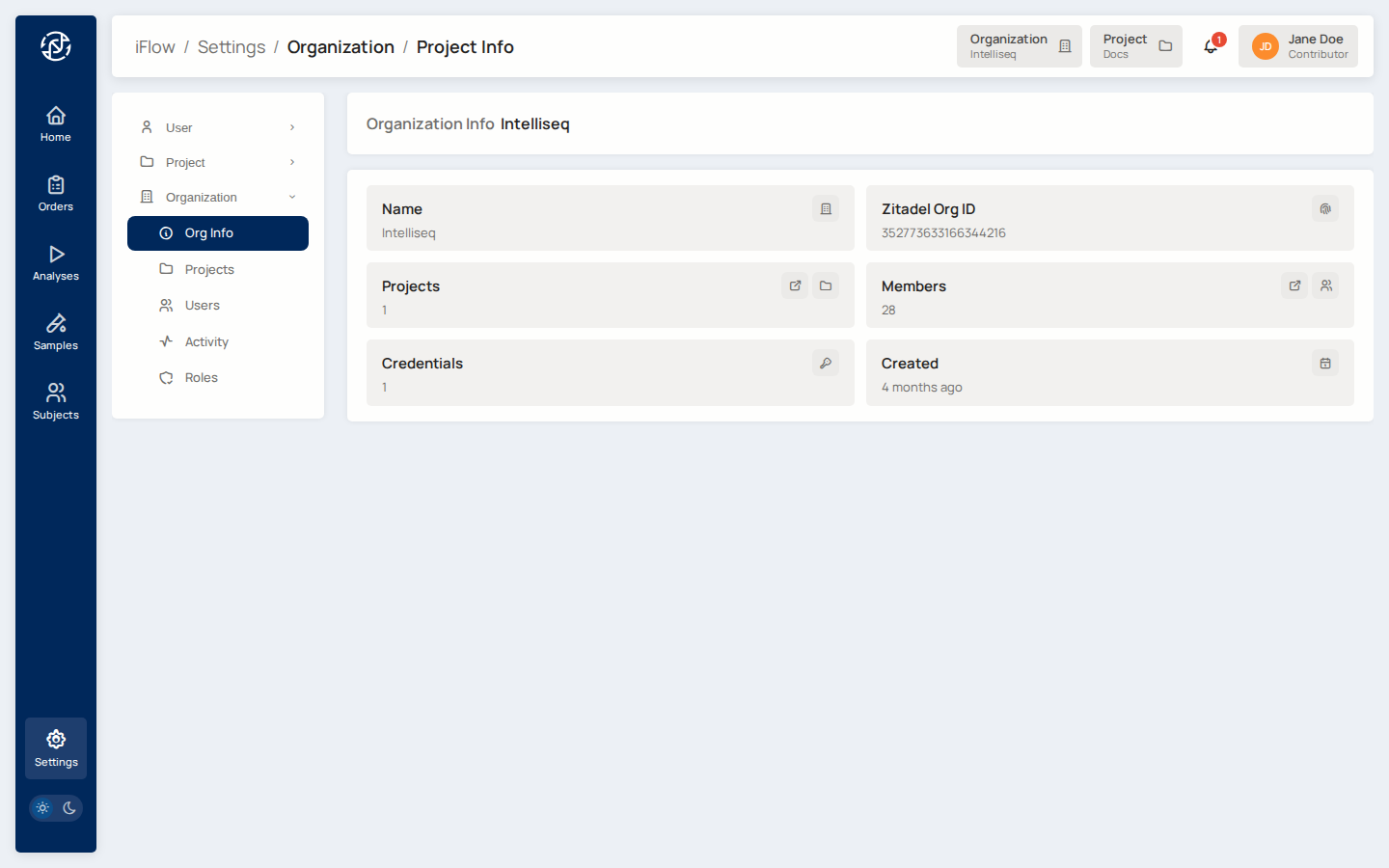
What lives at organization level:
- Projects — the workspaces where clinical work happens.
- Users — members, each with an organization role (Owner, Admin, Contributor, Viewer, Member) and optionally per-project roles.
- Credentials — cloud-storage credentials (GCS, S3). These are configured by Intelliseq (superadmin) and attached to projects for you.
The Organization settings area is visible only to organization Admins and Owners. If you're a project member without an org-admin role, you won't see the Organization tab in Settings — you'll see the Project settings instead.
Projects
Projects are workspaces within an organization. They scope all clinical data — subjects, samples, orders, analyses, files — and isolate teams that share an organization but shouldn't see each other's data.
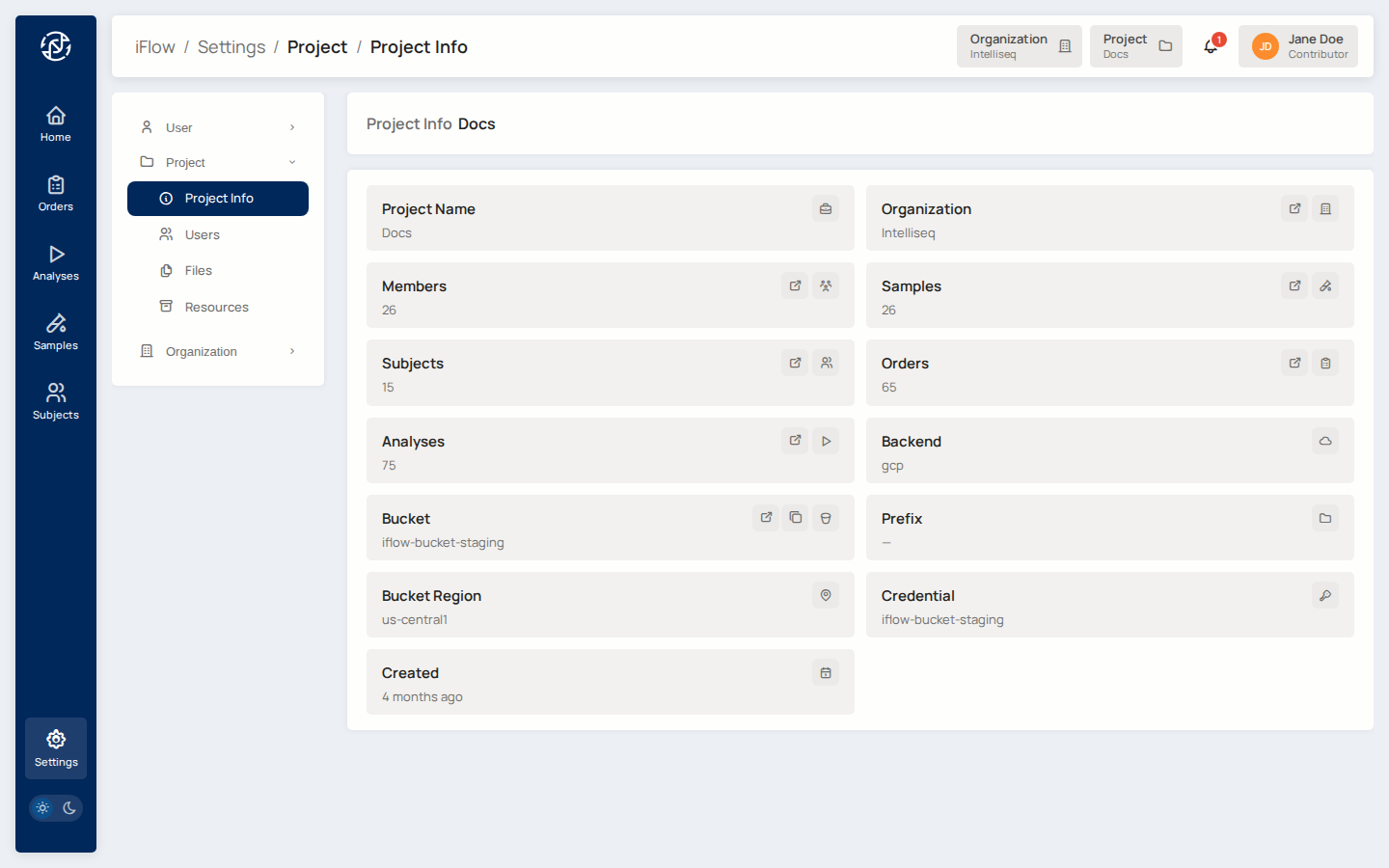
Each project has a cloud-storage bucket (set up by Intelliseq) where uploaded files and analysis outputs live — see Project Storage & File Paths. Everything you create — subjects, samples, orders, analyses — belongs to exactly one project.
What you can do in a project depends on your role
- Admin — full access to the project's data plus member management.
- Contributor — create and edit subjects, samples, orders, and run analyses.
- Viewer — read-only access to the project's data.
See Users & Roles for the complete permission matrix.
Switching organization or project
If you belong to more than one organization or project, use the Organization and Project pickers in the topbar to change your current context. Your selected project determines which subjects, samples, and analyses you see, and which bucket the file browser shows.
See also
- Users & Roles — who can do what at org and project level.
- Project Storage & File Paths — how files are organized inside the project bucket.
- Subjects, Samples, Orders — the clinical entities that live inside a project.