Results
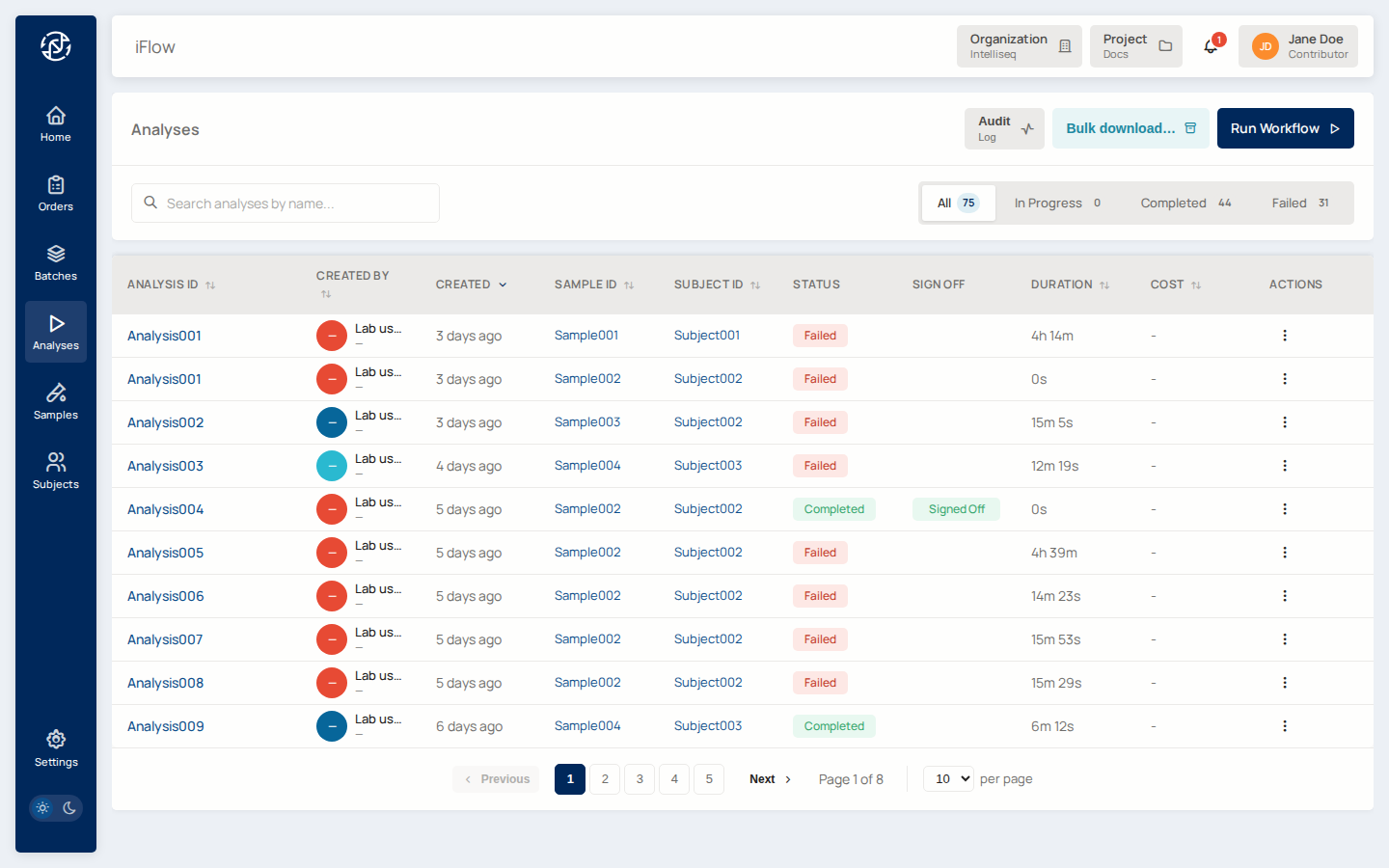
An analysis is a single run of a configured pipeline against a sample's inputs. Analyses are owned by Miner for the purposes of the clinical workflow; the underlying pipeline execution happens in Compute on cloud infrastructure (GCP Batch).
Data model
| Field | Purpose |
|---|---|
id (UUID) |
Internal primary key |
display_id |
Human-readable identifier, unique per project |
status |
queued, running, succeeded, failed, or cancelled |
pipeline |
The pipeline definition that was run |
inputs |
JSON description of what was fed to the pipeline |
outputs |
Produced files (paths relative to project bucket) |
metrics |
Runtime, cost, etc. |
logs_url |
Link into Compute for full logs |
Files
Analysis outputs live under analyses/{slug}/. The slug is derived from
display_id — see File Paths. A completed
analysis usually produces:
- A VCF for each sample (the primary input to the VCF browser).
- Alignment files (BAM) if applicable.
- Pipeline-specific reports, QC metrics, and logs.
Pipeline validation is the laboratory's responsibility
iFlow orchestrates and stores pipeline outputs; it does not validate pipeline correctness. See Intended Use.
Lifecycle
- Submit — from an order, a sample, or the Compute UI.
- Queued / Running / Succeeded / Failed — status transitions are driven by the pipeline engine and surfaced on the analysis detail page.
- Ingest — on success, the VCF service ingests the output VCF and builds the per-order cache used by the variant browser.
Downloading results
From a completed analysis's detail page you can download its outputs:
- Individual files — each output in the Outputs section has a download action.
- Download all — package the analysis's result files into a single archive and download it in one step. To pull the outputs of many analyses at once, use Bulk download instead.
Downloading non-PDF result files requires a project Viewer role or higher; the demo_viewer role can view the listing but not download these files.
Creating an order from an analysis
When an analysis completes, its detail page shows a Create Order button that pre-fills an order form with the samples the analysis ran against. Creating an order requires a project Contributor or Admin role.
This is the most common intake path for reruns, retesting, and cases where the pipeline is the source of truth.
UI
- Analyses list —
/analyses. Filters by status, pipeline, and date. - Analysis detail —
/analyses/{analysis_id}. Shows inputs, outputs, logs link, the download actions, and the Create Order button.
Related reading
- Analysis workflow — the case-level view of running a pipeline.
- Pipelines overview — secondary vs tertiary.
- Variant filtering — what happens to the VCF after the analysis succeeds.
- For scripted analysis management, see CLI → Managing Analyses.