RBAC Matrix
iFlow's access control has two independent axes that combine into an effective permission:
- Org role — who manages the organization (users, projects, credentials).
- Project role — who can read and modify entity data (samples, subjects, orders, analyses, files) inside a project.
Order-specific access adds a third axis for clinical workflow:
- Order access — for a given order stage, the assignee typically has edit access; everyone else is read-only.
You see the same three matrices in iFlow itself under Settings → Organization → Roles. This page is a copy of that UI, plus context you can't see on screen.
Org Roles
Organization roles control org-level management. Each user has one org role per organization. Higher roles include all lower-role permissions.
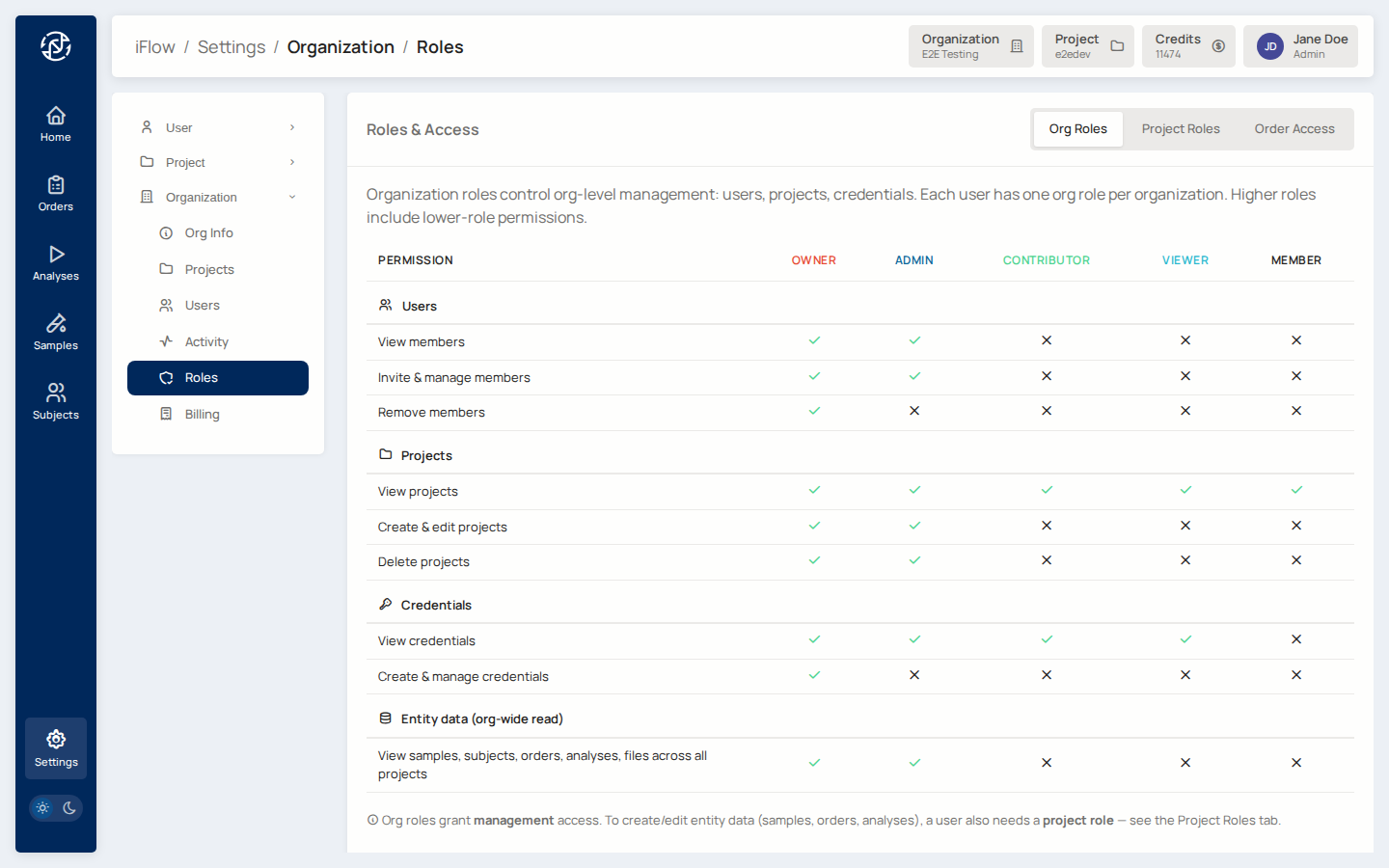
Org roles grant management access only
To create or edit entity data (samples, orders, analyses), a user also needs a project role. An org Admin with no project role cannot add a sample to a project — they can only manage membership.
Project Roles
Project roles control entity-data access within a single project. A user can have a different role in each project they belong to.
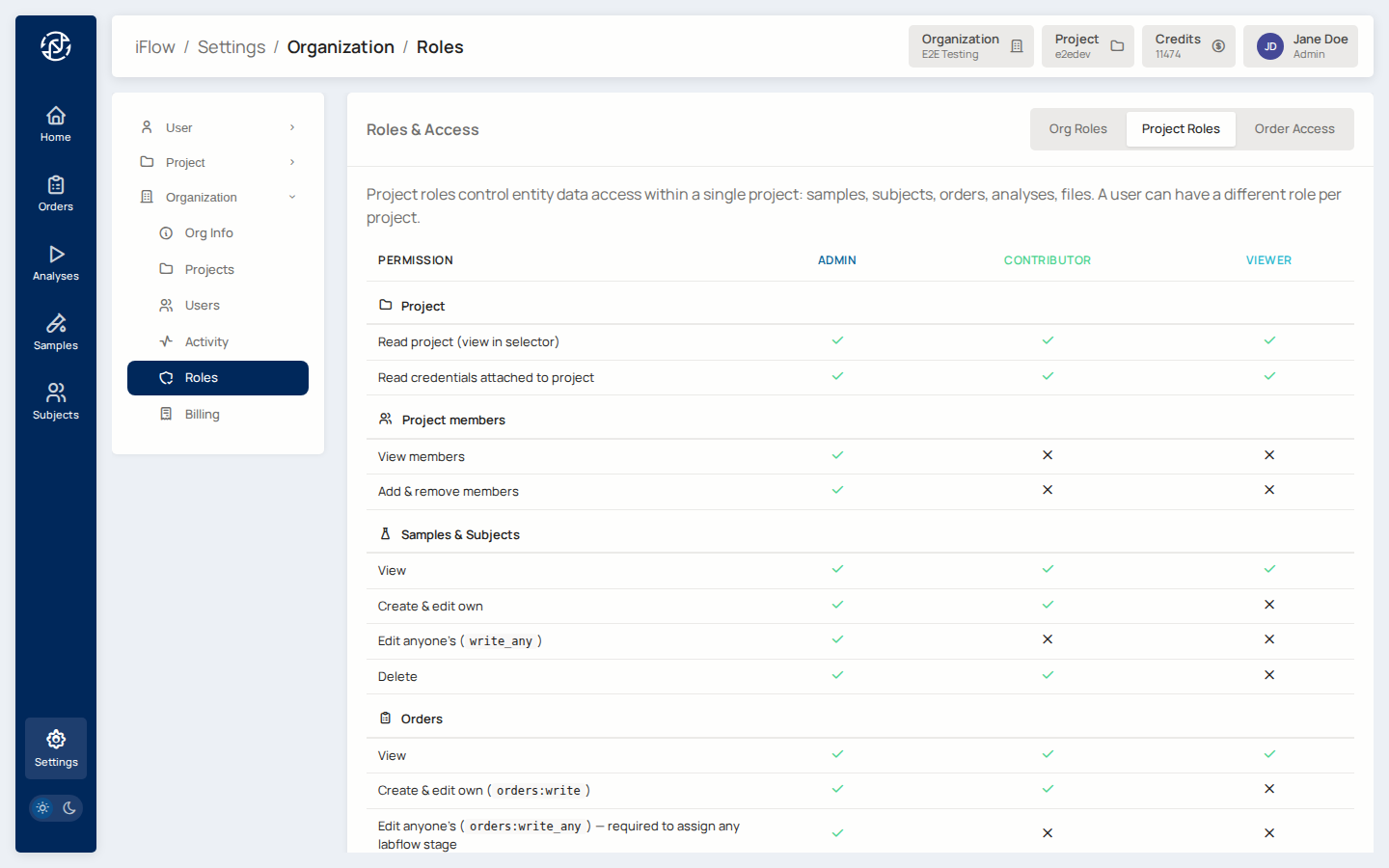
Permission codes referenced in this matrix:
| Code | Meaning |
|---|---|
orders:write |
Create and edit orders where the user is the stage assignee |
orders:write_any |
Edit any order regardless of assignment (required to assign other users to labflow stages) |
write_any (on Samples / Subjects) |
Edit entities created by anyone else |
Typical permission error
"I can see the order but I can't edit the variant." Check two things: (1) are you assigned to the current labflow stage? and (2) does the stage's flag allow editing? (See Order Access below.)
Order Access (labflow stages)
An order runs through five stages: Creation → Analysis → Review → Sign Off → Completion. Each stage has an internal state — pending, in progress, or completed. Effective access is the intersection of:
- the stage's access flags (whether variant browser / report are editable at all at this stage),
- the current stage state (most editing happens only in in progress),
- whether you are the assignee of the stage or not.
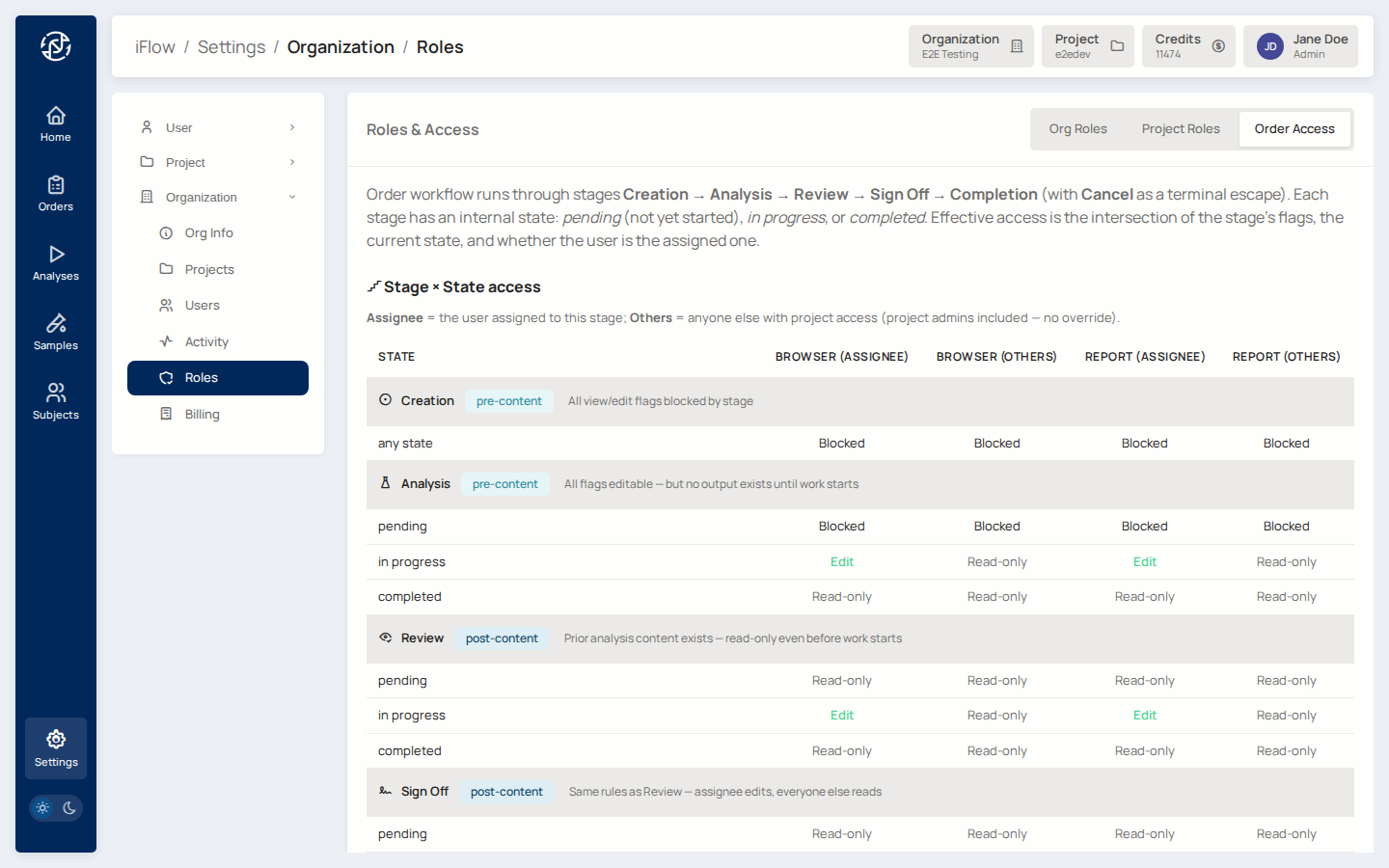
The stage tags have the following meaning:
pre-content— the analysis hasn't produced output yet, so there is nothing for anyone to view.post-content— analysis output exists; other users can read it even before work starts on the current stage.
Assignee vs Others
- Assignee is the single user currently owning the stage.
- Others is everyone else with project access. Project admins fall into "Others" unless they self-assign — there is no admin-override that grants editing without taking assignment.
How the three axes combine
The effective permission for an action is the intersection of all
three axes. For example, to edit a variant on an order that is in
Review: in progress:
- The user needs a project role that grants
orders:writeonSamples & Subjects / Orders(Contributor or Admin). - The current stage (
Review) must allow browser editing — it does. - The user must be the assignee of the Review stage.
If any one of the three is missing, the edit is blocked.
Role hierarchy at a glance
Highest → lowest. A user granted a higher role inherits everything below.
| Axis | Order |
|---|---|
| Org | Owner > Admin > Contributor > Viewer > Member |
| Project | Admin > Contributor > Viewer |
Superadmin is a platform-level role granted outside these two axes —
used for Intelliseq operators, not for laboratory users. See
Intended Use for the responsibilities split.
Terminal guarantees
order.status = completedandreport.status = signedare terminal for editing through the normal UI. Modifying a completed order's report requires an amendment, which creates a new signed PDF.signed_pdf_pathis set once by Approve-and-Sign and never overwritten. Sign-off uploads the PDF via admin credentials, not the signing user's, so a clinical signatory without bucket-write access can still sign.- Every transition is appended to
OrderStageTransitionHistorywith the acting user ID and timestamp — the audit trail is immutable.
Related reading
- Default scenario walkthrough — see the roles in action.
- Labflows service page — how stage flags and transitions are configured.
- Intended Use — scope and limitations.